Welcome! This tutorial dives into RenPy’s color system, exploring how to define, utilize, and dynamically adjust colors within your visual novel projects․
We’ll cover everything from basic color codes to advanced techniques like im․MatrixColor and persistent variables for custom schemes․
Learn to create visually appealing interfaces and character customizations through effective color manipulation, enhancing your game’s aesthetic appeal․
RenPy employs a flexible color system built upon RGB (Red, Green, Blue) values, alongside support for hexadecimal color codes and predefined color names․ Understanding this foundation is crucial for achieving the desired visual style in your game․ Colors are defined using the format rgb(red, green, blue), where each component ranges from 0 to 255․ Alternatively, you can use hexadecimal notation like #RRGGBB, offering a more concise representation․
RenPy’s color system isn’t limited to static definitions․ It allows for dynamic color adjustments based on game state, character selection, or even user preferences․ This is achieved through Python scripting within RenPy’s script language․ The gui․rpy file serves as the central location for defining and managing interface colors, including dialogue boxes, text labels, and buttons․
Furthermore, RenPy provides functions and tools for color manipulation, such as tinting images and adjusting color matrices․ These features enable you to create subtle variations and visually engaging effects, enhancing the overall immersive experience for players․ Mastering these concepts unlocks a world of creative possibilities for your visual novel’s presentation․
Understanding Color Codes in RenPy
RenPy supports several methods for specifying colors, each with its advantages․ RGB utilizes three values representing red, green, and blue intensity (0-255), like rgb(255, 0, 0) for pure red․ Hexadecimal codes, such as #FF0000, offer a compact alternative, directly representing RGB values in base-16․ Understanding the conversion between these formats is beneficial․
Beyond these, RenPy recognizes color names like “red”, “blue”, and “green”, providing a convenient shorthand․ However, relying solely on named colors limits precision․ For nuanced shades, RGB or hexadecimal are preferred․ Alpha transparency can be added using a fourth value in RGB: rgba(255, 0, 0, 128), where 128 represents 50% transparency․
When defining colors in gui․rpy or within scripts, consistency is key․ Using a mix of methods can lead to confusion․ Consider establishing a clear coding style for color definitions throughout your project․ Remember that RenPy interprets color codes case-insensitively for hexadecimal values․
Defining Colors in RenPy (gui․rpy)
The primary location for defining custom colors is the gui․rpy file․ This file controls the game’s interface, making it ideal for establishing a consistent color palette․ Colors are defined using the define statement followed by a color name and its corresponding RGB or hexadecimal value․ For example: define my_color = "#FFA500" creates a color named “my_color” in orange․
Within gui․rpy, you can then reference these defined colors when styling interface elements like dialogue boxes, buttons, and text․ RenPy automatically recognizes these names, simplifying code readability and maintainability․ It’s good practice to group related color definitions together for organization․
Remember to restart RenPy after modifying gui․rpy to ensure the changes are applied․ Carefully consider the overall aesthetic when choosing colors, aiming for contrast and accessibility․ Well-defined colors in gui․rpy form the foundation of your game’s visual identity․
Using Predefined Colors

RenPy comes equipped with a set of predefined colors, accessible directly without needing explicit definitions in gui․rpy․ These include standard options like "white", "black", "red", "green", "blue", and "gray", offering a quick starting point for styling your game․ You can find a comprehensive list within the RenPy documentation․
These predefined colors are particularly useful for prototyping or when a simple color scheme is sufficient․ However, relying solely on them can limit customization․ For more nuanced control, defining your own colors (as discussed previously) is recommended․
Predefined colors can be used in conjunction with custom colors, allowing you to build upon the existing palette․ Remember that color names are case-sensitive, so ensure correct capitalization when referencing them․ Utilizing these built-in options streamlines initial development, but custom definitions unlock greater creative freedom․
Custom Color Schemes for Dialogue Boxes
Creating custom color schemes for dialogue boxes significantly enhances your game’s visual identity․ Begin by defining a set of colors in gui․rpy that represent your desired aesthetic – consider background, text, and window colors․ These can be named descriptively, like "dialogue_bg", "dialogue_text", and "dialogue_window"․
Then, modify the relevant screen definitions (typically the "dialogue" screen) to utilize these custom colors․ For example, change the background property to use "dialogue_bg" and the text_color property to use "dialogue_text"․
To enable switching between schemes, implement persistent variables (explained in the next section)․ This allows players to personalize their experience․ Remember to test your color choices for readability and accessibility, ensuring a comfortable reading experience for all players․ A well-designed scheme elevates the overall presentation․
Implementing Persistent Variables for Color Schemes
To allow players to choose their preferred color scheme, utilize persistent variables․ These variables retain their value across game sessions, remembering the player’s selection․ First, define a persistent variable, such as default colorscheme = "lightondark" in options․rpy or gui․rpy․ The initial value sets the default scheme․
Next, create a function that dynamically retrieves the appropriate color based on the colorscheme variable․ For instance, a function could return different color values for dialogue backgrounds depending on whether colorscheme is “lightondark” or “darkonlight”․
Finally, integrate this function into your screen definitions, replacing hardcoded color values with calls to this function․ This ensures that the colors adapt to the player’s chosen scheme․ Remember to provide an in-game option to allow players to modify the colorscheme variable․
Switching Between Color Schemes
Implementing a user interface for switching color schemes requires a screen with buttons or options representing each available scheme․ Each button’s action should modify the persistent colorscheme variable, triggering a redraw of the interface with the new colors․
Within the screen, use buttons like Button(text="Light Mode"): and action=SetVariable("colorscheme", "lightondark")․ Ensure the screen is accessible from the main menu or options screen․ After changing the variable, RenPy automatically re-evaluates any code that depends on it․
To ensure a smooth transition, consider adding a brief animation or visual cue when the color scheme changes․ This provides feedback to the player and enhances the user experience․ Remember to test thoroughly with different schemes to confirm everything displays correctly․
Dynamic Color Changes Based on Game State
RenPy allows colors to shift responsively to in-game events, enhancing immersion․ For example, dialogue box colors could change based on a character’s emotional state – red for anger, blue for sadness․ This is achieved by linking color definitions to game variables․
Define a function that returns a color based on a condition․ For instance, define get_mood_color: return "#ff0000" if character․mood == "angry" else "#0000ff"․ Then, use this function within your GUI style definitions: style dialogue: color_bg = get_mood_color․
Remember to update the relevant variables during gameplay to trigger the color changes․ This technique extends beyond dialogue boxes, influencing backgrounds, character sprites, and interface elements, creating a dynamic and reactive visual experience․


Color Manipulation with `im․MatrixColor` (and Alternatives)
im․MatrixColor, while powerful, is now considered outdated․ PyTom advises against its use in modern RenPy development․ The preferred method involves utilizing RenPy’s built-in image manipulation features and filters for color adjustments․
Instead of im․MatrixColor, explore techniques like adjusting image brightness, contrast, and saturation directly within RenPy․ You can achieve similar effects using Python code and image processing libraries integrated with RenPy․ This approach offers better compatibility and performance․
For subtle color shifts, consider using the tint function (discussed later)․ For more complex manipulations, investigate RenPy’s image filters and Python’s image processing capabilities․ Remember to prioritize modern methods for optimal results and future-proofing your project;
Tinting Images for Color Variation
Tinting offers a simple yet effective way to introduce color variations to images without altering the original artwork drastically․ RenPy’s tint function allows you to apply a color overlay to any image, creating subtle or dramatic shifts in hue and saturation․
This technique is particularly useful for character sprites, enabling dynamic hair color customization or adapting character appearances to different scenes or emotional states․ It’s a non-destructive method, meaning the original image remains unchanged․
Experiment with different tint colors and opacities to achieve the desired effect․ Consider using functions to dynamically retrieve tint colors based on game state or player choices․ Tinting is a versatile tool for adding visual flair and personalization to your visual novel․
Applying Tint to Character Sprites

Character sprites benefit greatly from tinting, allowing for quick visual changes without needing multiple image assets․ For example, you can simulate different lighting conditions or even alter a character’s outfit color subtly․ RenPy’s image manipulation features make this process straightforward․
To apply a tint, use the tint modifier within your displayable statements․ Specify the desired color as an RGB tuple or a predefined RenPy color․ Adjust the opacity to control the intensity of the tint․ Remember to consider how the tint interacts with the sprite’s existing colors․
This is especially useful for creating variations of a base sprite, reducing the need for extensive artwork․ Dynamic tinting, driven by game variables, can create compelling visual feedback based on player actions or story events, enhancing immersion․
Using Tint for Hair Color Customization
Hair color customization is a popular feature in many visual novels, and RenPy’s tinting capabilities provide a flexible solution; Instead of creating numerous hair sprites for each color, you can dynamically alter the hair’s hue using tinting․ This approach significantly reduces asset creation time and file size․
Implement this by defining variables to store the player’s chosen hair color․ Then, apply a tint to the character sprite’s hair layer using these variables․ Reddit discussions highlight using SetVariable actions linked to hotspots to allow players to select colors interactively․
Remember to carefully select tint colors that complement the base hair sprite’s shading․ Experiment with different blending modes to achieve the desired effect․ Avoid overly saturated colors that might appear unnatural․ This method offers a streamlined and efficient way to personalize character appearances․
GUI Color Changes Based on Selected Character
Dynamically altering the GUI’s color scheme based on the currently selected character enhances immersion and provides visual feedback to the player․ This can be achieved by creating a function that returns the appropriate color values based on the character’s ID or name․
Reddit discussions suggest defining a function that accesses a dictionary mapping characters to specific color schemes․ Whenever the GUI needs a color (like gui․hover_color), it calls this function to retrieve the correct value․ This ensures consistency and simplifies color management․
Consider factors like character personality and backstory when designing color schemes․ A cheerful character might have brighter colors, while a more serious character could have darker, muted tones․ This subtle detail can significantly impact the player’s experience․
Functions for Dynamic Color Retrieval
To streamline color management and enable flexible adjustments, utilize functions for dynamic color retrieval․ Instead of hardcoding color values throughout your RenPy script, define functions that return the desired color based on specific conditions or variables․
As highlighted in Reddit discussions, these functions can access dictionaries or other data structures containing color definitions․ This approach allows for easy modification of color schemes without altering numerous lines of code․ For instance, a function could return different color schemes based on a player preference or game state․
Employing functions promotes code reusability and maintainability․ When a color needs to be accessed, simply call the function, ensuring consistency and simplifying future updates․ This is particularly useful for complex interfaces with numerous color-dependent elements․
Changing Interface Text Color
Modifying interface text color in RenPy is primarily achieved through the gui․rpy file․ This file defines the style of your game’s user interface, including the colors used for text elements․ You can directly alter the color values associated with text labels, buttons, and other interface components․
Reddit discussions emphasize that if your default interface text color is set to black, it might not be immediately visible against certain backgrounds․ Therefore, carefully choose colors that provide sufficient contrast for readability․
To change the color, locate the relevant style definitions in gui․rpy and adjust the color codes․ Remember to restart RenPy to see the changes reflected in your game․ Consider using functions for dynamic color retrieval to adapt text colors based on game events or user preferences, enhancing the user experience․
Color Adjustments for Hover States
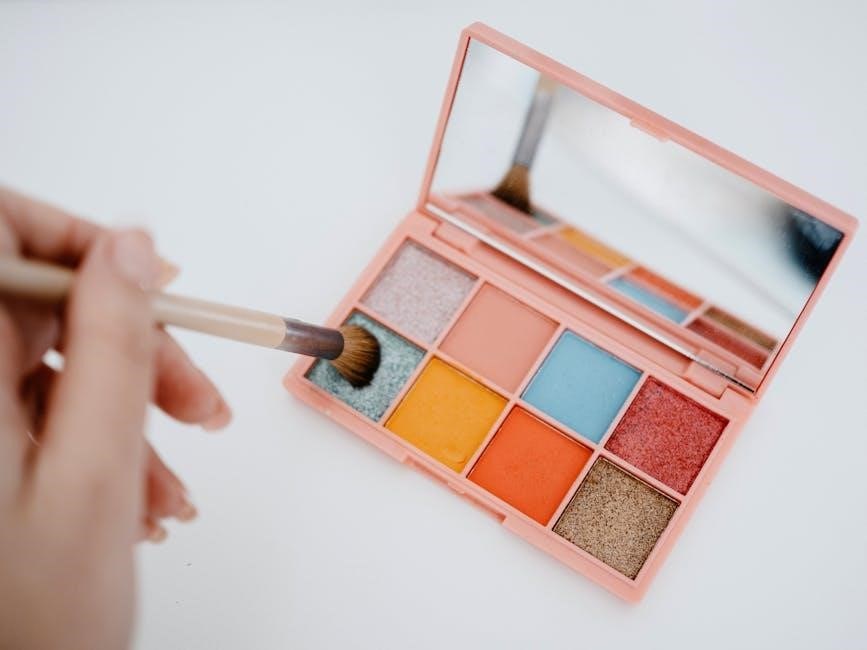
Enhancing user feedback is crucial, and color adjustments for hover states are a key element․ RenPy allows you to change the appearance of interface elements – like buttons and text labels – when the mouse cursor hovers over them․ This provides visual confirmation to the player that an element is interactive․
A common approach, highlighted in Reddit discussions, involves defining a function that dynamically retrieves the appropriate hover color․ This function, gui․hover_color, is then used within the style definitions for your interface elements․
By implementing this, every time the UI needs to determine the hover color, it executes the function, ensuring the correct color is applied․ This method is particularly useful when you want hover colors to change based on the selected character or other game states, creating a more responsive and engaging experience․
Troubleshooting Common Color Issues
Color inconsistencies can arise in RenPy projects, often stemming from unexpected interactions between defined styles and screen resolutions․ A frequent issue involves interface text appearing black when a different color is intended․ This usually indicates a problem with the color definition within gui․rpy, or a style overriding the desired color․
Another common problem is difficulty achieving the precise shade you envision․ Remember that color perception varies across screens, so testing on multiple devices is vital․ Utilize RenPy’s color picker and experiment with RGB and hexadecimal values to fine-tune your palette․
If using im․MatrixColor, heed PyTom’s advice: avoid using “im․anything” as newer features offer better compatibility․ Carefully review your code for typos in color names and ensure proper syntax․ Consulting the RenPy documentation and the community forums on Reddit can provide solutions to specific challenges․
Resources and Further Learning
To deepen your understanding of RenPy’s color system, several excellent resources are available․ The official RenPy documentation is an invaluable starting point, offering comprehensive explanations of color codes, styles, and image manipulation techniques․ Explore the built-in tutorial within the RenPy engine itself for hands-on practice․
The r/RenPy subreddit is a vibrant community where you can ask questions, share your work, and learn from experienced developers․ Numerous tutorials and code snippets are shared regularly, addressing specific color-related challenges․

Don’t overlook the RenPy Wiki, a collaborative resource containing a wealth of information on various aspects of RenPy development․ Additionally, consider exploring online forums and communities dedicated to visual novel creation for broader insights and inspiration․ Experimentation and practice are key to mastering RenPy’s color capabilities!